

Browser Tabs

Every Marketplace, Every Account—At Once
PrivateTabs lets you keep each marketplace account (StubHub,
SeatGeek, Ticketmaster, and more) fully separate in its own
private tab. Each one has its own “digital identity,” so nothing gets tangled
or crossed. Built for sellers and power users, it’s your secret weapon for
handling multiple accounts, big teams, or heavy sales without the
headache of endless logins or cookie chaos.
Already set up somewhere else?
Switch in minutes. Import your profiles with a simple spreadsheet and hit the ground running.
Here’s how you can import your profiles:
Before You Begin
- Only the main account user can import profiles. Do not use a secondary account for this process.
- The import file
must be in XLSX format—CSV files are not supported.
Step 1: Access the Import Tool
- Log in to your Private Tabs account using the main account user credentials.
- Once logged in, you’ll be on the Account Listing page (this loads by default).
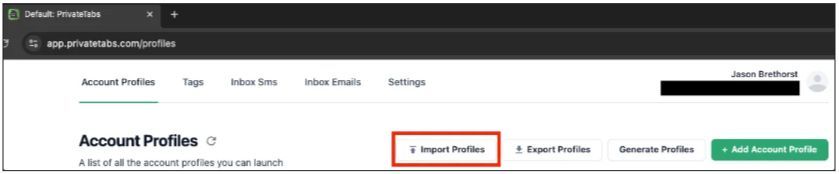
- On the right side, click the "Import Accounts" button.
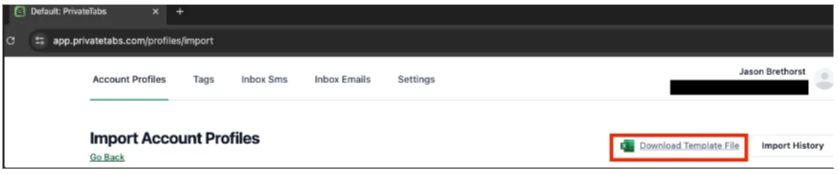
- At the top, you’ll see an option to "Download Template"—click this to download the required Excel file.
- Note: If you don’t have Excel installed, you can use
Google Sheets or the
free online version of Excel to edit the template.
Step 2: Fill Out the Import Template
- Open the downloaded ImportTemplate.xlsx file.
- Copy and paste the data you want to import.
Required fields:
- Name
- Password
Optional fields:
- Leave any other fields blank if they are not needed.
- Do not manually define the Proxy field—Private Tabs will assign it automatically.
- If you want to group accounts, add a comma-separated list of tags in the "Tags" column.
Step 3: Upload the File
- Save the file without changing the format (keep it as XLSX).
- Drag and drop the saved file into the upload section on the Import Profiles page.
- The system will automatically import all the accounts from the file.
Common Issues & Troubleshooting
🛑 Issue: File is not in XLSX format (Mac users using Numbers app)
If you’re using Apple’s Numbers app, you’ll need to convert the file to an Excel format before uploading:
- Open the file in Numbers.
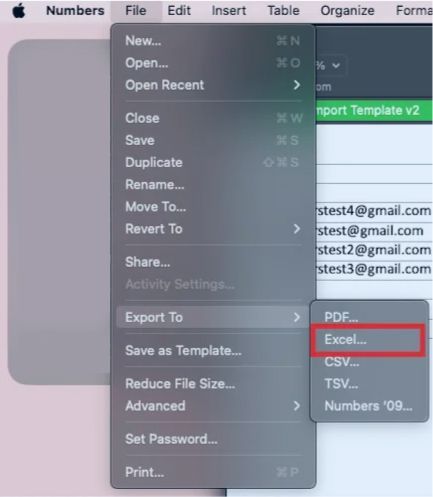
- Click File in the top toolbar.
- Select Export To > Excel.
- Save the file as an .xlsx format.
🛑 Issue: Template format was changed
✅ Ensure that the column names and structure in the template remain exactly as they are.
✅ Do not add extra columns, change headers, or modify formatting.
🛑 Issue: Required fields are missing
✅ Make sure Name, Email, and Password are filled in for each entry.
✅ If any of these are missing, the import will fail.
🛑 Issue: Can't find the downloaded template file
✅ Windows users: Check File Explorer > Downloads.
✅ Mac users: Check Finder > Downloads.
✅ If you don’t see it, try searching for "ImportTemplate.xlsx".
QUESTIONS OR NEED HELP?
Schedule a support call
here.
Call us at
414-326-4100
Or email:
support@privatetabs.com